





Let’s Configure Rank Math SEO. If you are new to SEO and WordPress, setting up Rank Math SEO can feel scary at first. In reality, the plugin gives you a simple setup wizard and smart defaults that you can follow in a few minutes. This step‑by‑step guide will walk you through the whole process in plain English, so you do not break anything on your site.
This tutorial is part of my Rank Math pillar series. For the full overview of features, read my main guide: Rank Math SEO: The Ultimate Guide to Optimizing Your WordPress Site. For advanced schema, redirects, and Content AI, go to Advanced Rank Math Features: Schema, Redirections, and Content AI Explained.
Step 1: Install and Activate Rank Math SEO

First, you need to install the plugin on your WordPress site.
- Log in to your WordPress admin dashboard.
- Go to Plugins → Add New.
- In the search box, type Rank Math SEO.
- Find the plugin called Rank Math SEO – AI SEO Tools to Dominate SEO Rankings and click Install Now.
- After the install finishes, click Activate.
Once you activate Rank Math, it will automatically launch the Setup Wizard to guide you through the basic configuration.
If for some reason you do not see the wizard, you can open it any time from Rank Math SEO → Dashboard → Setup Wizard.
Step 2: Choose Easy or Advanced Mode
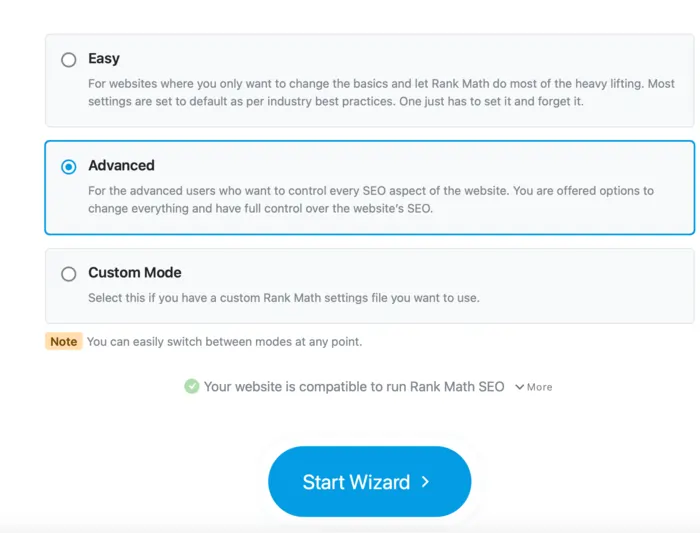
When the Setup Wizard opens, Rank Math first asks which mode you want to use.
- Easy Mode – Best for beginners. Rank Math uses safe defaults and hides complex options. You can switch to Advanced later.
- Advanced Mode – Shows all settings and modules. Good if you already understand basic SEO and want fine control.
If you are a beginner, choose Easy Mode to keep things simple. Remember, you can change this setting later in the Rank Math dashboard if you want more control.
Step 3: Connect Your Rank Math Account (Optional but Recommended)
Rank Math will ask you to connect a free Rank Math account. Connecting the account unlocks more features such as advanced modules and updates.
- Click the Connect Your Account button.
- Sign in with Google, Facebook, or email on the Rank Math website.
- Approve the connection and return to your WordPress site.
You can skip this step and come back later, but connecting now is the easiest option.
Step 4: Set Your Website Type and Basic Info
Next, Rank Math asks what type of website you run.
Common options include:
- Personal blog
- Business website
- Online store
- Portfolio or personal brand
Choose the option that best fits your site. Then fill in:
- Website name
- Logo (square logo works best)
- Default social share image (used when a page has no specific image)
Rank Math uses this information to set up basic schema and knowledge graph data for your website entity. This helps Google and AI systems understand who you are and what your site is about.
If you want to learn more about how this helps the knowledge graph, see: What is Google Knowledge Graph?.
Step 5: Connect Google Search Console
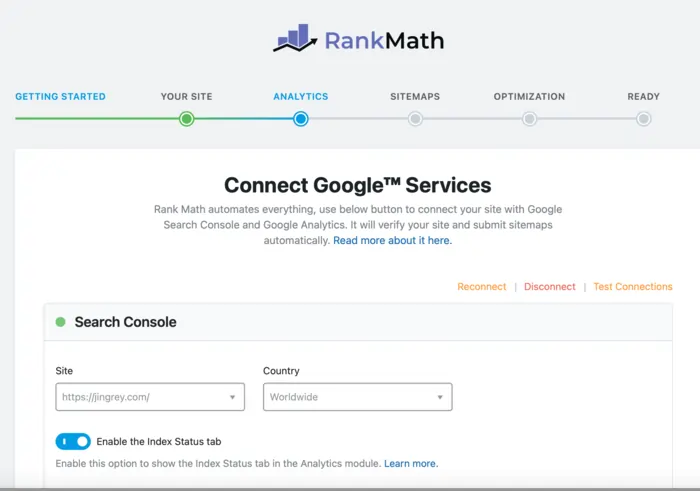
The next screen lets you connect Google Search Console.
- Click Connect Google Services.
- Choose your Google account and select the correct property for your site.
- Allow Rank Math to access the data and return to WordPress.
Connecting Search Console lets Rank Math show search data inside your WordPress dashboard. This is useful when you start optimizing content and want to see impressions, clicks, and queries.
If you have not set up Search Console yet, you can create a property at Google Search Console first, then come back to this step.
Step 6: Configure Sitemap Settings
Rank Math can generate XML sitemaps so search engines can discover your content faster.
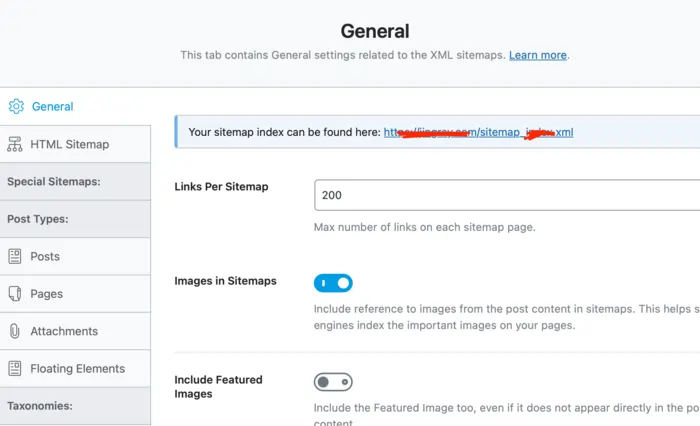
On the Sitemap step:
- Make sure Sitemaps are Enabled.
- Choose which content types you want to include, usually Posts and Pages.
- Turn off sitemaps for low‑value content like media attachments or certain archives.
For most beginners, a safe setup is:
- Include posts and pages in the sitemap.
- Exclude attachment pages.
- Exclude thin taxonomies you do not really use (for example date archives).
Google has a short guide on sitemaps here: XML sitemaps guide.
After you finish this step, Rank Math will create your sitemap at a URL like https://yourdomain.com/sitemap_index.xml.
Step 7: Basic SEO Tweaks and Indexing Rules
Rank Math offers a few SEO tweaks during the wizard to help you avoid common problems.
Typical options include:
- Noindex empty category and tag archives
- Nofollow external links in comments
- Open external links in a new tab
For beginners, it is usually safe to accept the recommended options. They reduce thin content and spam issues without hurting your site.
Later, under Rank Math SEO → General Settings, you can adjust more options like breadcrumbs, webmaster tools verification, link attributes, and image SEO.
Step 8: Import Settings from Other SEO Plugins (If Needed)
If you used another SEO plugin before (like Yoast SEO or All in One SEO), Rank Math can import your existing data.
On the import screen:
- Select the plugin you used before.
- Check options to import titles, meta descriptions, focus keywords, and some schema data if available.
- Run the import process and wait until it finishes.
This makes the switch easier and helps you keep your current search performance. If you are still thinking about switching, see my comparison: Rank Math vs Yoast vs All in One SEO: Which WordPress SEO Plugin Should You Use in 2026?.
Step 9: Finish the Setup Wizard
The last screen shows a summary of your choices. Click Finish Setup Wizard to complete the basic configuration.
Rank Math is now active on your site with a solid beginner setup. From this point, you can start optimizing individual posts and pages using the Rank Math panel in the editor.
For a visual walk‑through, you can also watch a short video such as this Rank Math setup wizard tutorial on YouTube (search: “How To Set Up Rank Math SEO Setup Wizard 2026”).
Step 10: Check Essential Modules in the Dashboard
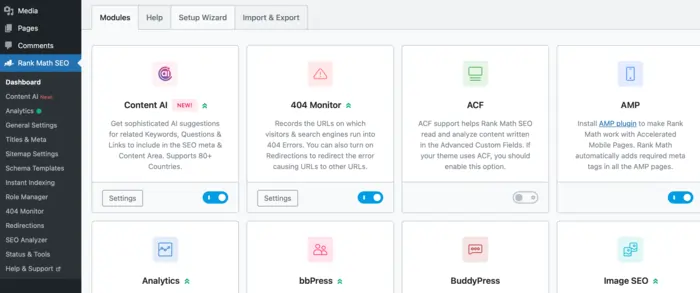
After the wizard, go to Rank Math SEO → Dashboard. Here you can turn modules on or off.
For beginners, I recommend you keep these modules enabled:
- 404 Monitor – to track broken links.
- Redirections – to fix broken URLs with 301 redirects.
- Schema (Structured Data) – to add rich results.
- XML Sitemap – if it is not already active.
- Local SEO & Knowledge Graph – if you are a local business or strong personal brand.
You can keep more complex modules off until you need them. My advanced guide covers fine‑tuning: Advanced Rank Math Features: Schema, Redirections, and Content AI Explained.
Step 11: Set Default Titles and Meta Templates
Next, go to Rank Math SEO → Titles & Meta. Here you define default patterns for:
- Posts
- Pages
- Categories and tags
- Homepage
For example, for posts you can use a pattern like:
- SEO Title:
%title% | %sitename% - Meta Description: use the post excerpt or a short summary you write yourself
Rank Math lets you use variables so you do not type titles from scratch every time. You can still override these values individually in each post.
Good default templates save time and keep your site consistent.
Step 12: Configure Basic Schema Defaults
Still in Titles & Meta, open the Posts and Pages tabs and set default Schema Type.
Simple defaults for beginners:
- Posts → Article
- Pages → Article or Service (for service pages)
This makes sure your posts have at least basic schema even if you forget to customize them later. When a page needs special schema like FAQ, HowTo, or Product, you can change it in the post editor using the Rank Math schema panel.
If you want to dig deeper into schema with Rank Math, you can read Google’s guide to structured data and then apply it with the plugin: Structured data basics.
Step 13: Test Rank Math on a Post
Open one of your important posts or pages in the WordPress editor. You should see the Rank Math SEO panel on the side or at the bottom.
Here you can:
- Set your focus keyword (for example, “rank math seo tutorial”).
- Check the SEO score and follow basic suggestions.
- Edit the SEO title and meta description.
- Check schema and change the type if needed.
- Confirm you have at least one internal link and one external link in the content.
Do not obsess over hitting a perfect 100 score. Use the checklist as a simple guide and keep your writing natural.
For a bigger picture of how Rank Math fits into your overall WordPress SEO, you can refer back to Rank Math SEO: The Ultimate Guide to Optimizing Your WordPress Site.

Frequently Asked Questions for Beginners
Do I have to use Advanced Mode to get good results?
No. For most beginners, Easy Mode is enough to get a clean and safe configuration. You can switch to Advanced later when you understand more SEO concepts.
Will the setup wizard break my existing rankings?
If you follow the wizard and import settings from your old plugin when asked, Rank Math keeps your titles and meta data. In most cases, your rankings stay stable or improve with better settings.
What should I do after finishing the Rank Math setup?
After setup, focus on optimizing individual posts: good titles, clear meta descriptions, helpful content, internal links, and simple schema. Use the Rank Math panel as a checklist, not a strict scoring game.
Is Rank Math SEO enough to rank my site on its own?
Rank Math gives you a strong technical and on‑page foundation, but you still need quality content, keyword research, and links from other sites to rank in competitive niches.
Where can I learn more about Rank Math features?
You can explore the official Rank Math knowledge base and my advanced guide: Advanced Rank Math Features: Schema, Redirections, and Content AI Explained.